
HotelXray Blog
Hyatt Website Blank in Chrome? Two Ways to Fix the White Screen
Get Hyatt loading again in Chrome with HotelXray's targeted recovery, or follow the manual fix step by step without the extension.
Last updated
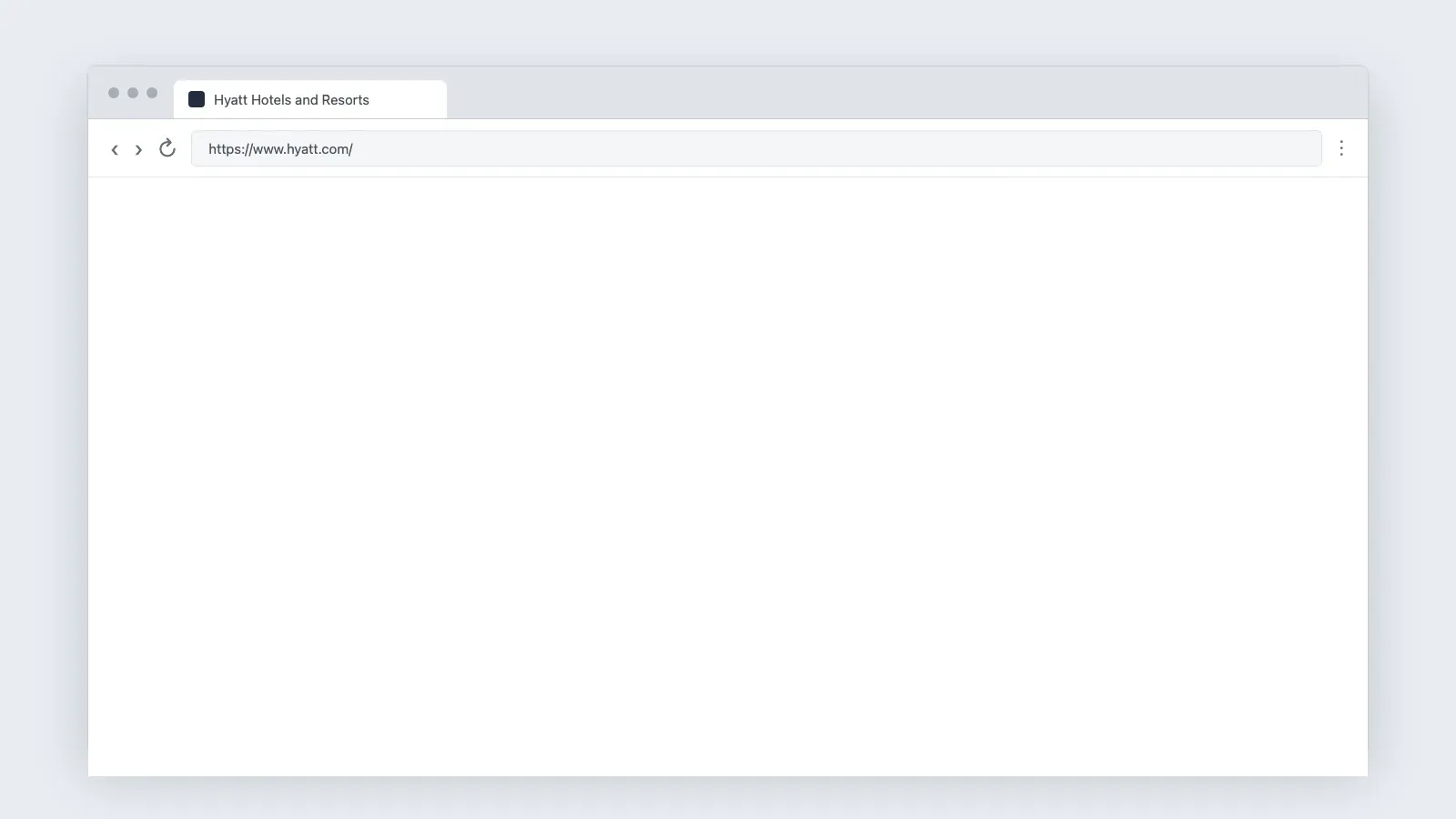
If the Hyatt website opens to a blank or white screen in Chrome, you can fix it in one of two ways:
- Method 1: Fix it with HotelXray (Recommended). One click repairs the affected Hyatt session while keeping you signed in to Hyatt and Google.
- Method 2: Fix it manually in Chrome without HotelXray. Use Chrome’s built-in tool to clear cookies and cached files.
Method 1: Fix it with HotelXray (Recommended)
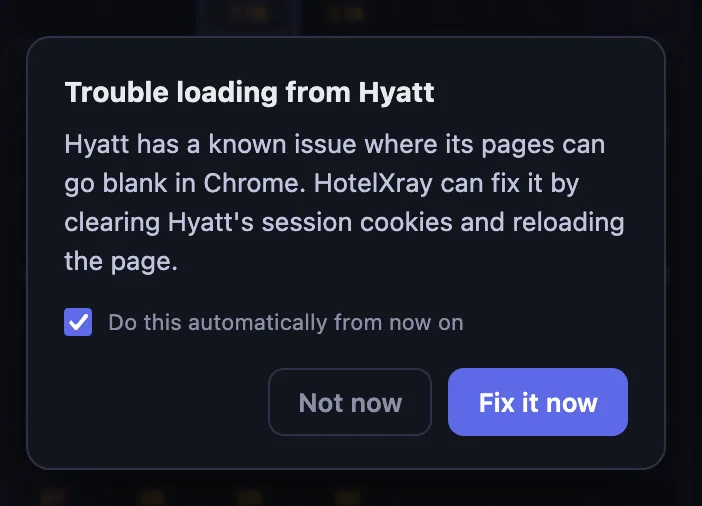
Install HotelXray, then browse Hyatt as usual. Once HotelXray detects that a supported Hyatt page has loaded blank, it shows the Trouble loading from Hyatt prompt.
When the prompt appears:
- Optionally select Do this automatically from now on if you want HotelXray to handle future blank Hyatt pages without asking again.
- Click Fix it now.
- Wait for HotelXray to repair and reload the page.
Method 2: Fix it manually in Chrome without HotelXray
Use Chrome’s Delete browsing data tool:
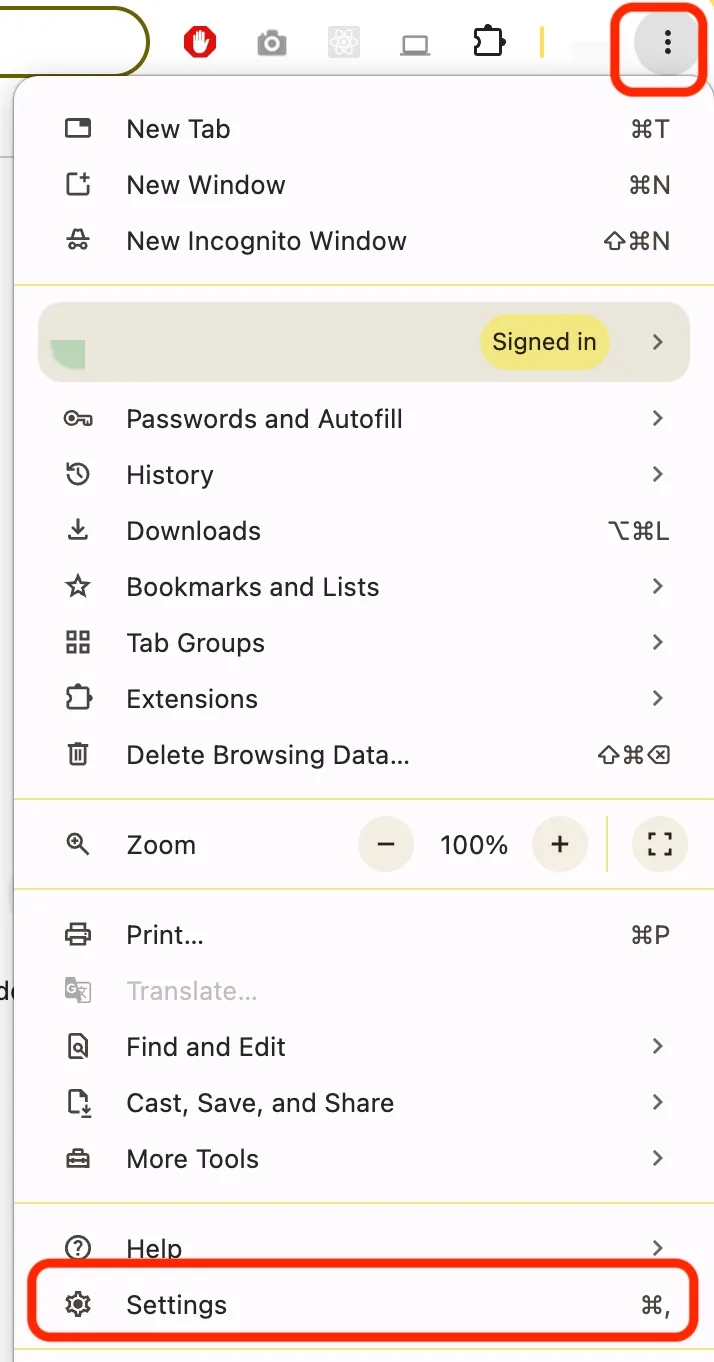
Step 1: Open Chrome Settings
Click Chrome’s three-dot menu in the upper-right corner, then click Settings.
Step 2: Open Delete browsing data
Select Privacy and security, then click Delete browsing data.

Step 3: Clear cookies and cached files
Keep Cookies and other site data and Cached images and files selected, then click Delete data.

Step 4: Reopen Hyatt
Close the affected Hyatt tabs, open Hyatt again and sign in if needed.
Why Hyatt can show a white page without an error
HotelXray has observed Hyatt returning a rate-limit or bot-protection response that leaves the page blank. The issue can affect the home page, hotel pages, search results or sign-in, and may be limited to one Chrome profile. That is why another browser can load Hyatt while your usual profile shows a white screen.
What to do if the page is still blank
If Hyatt remains blank after either method:
- Wait and retry later in case Hyatt is having a service issue.
- Open the same URL in a Chrome Guest profile, another Chrome profile or another browser.
- Test a different network to separate browser state from a network-level restriction.
- Capture the URL, time, browser version and a screenshot before contacting Hyatt support.
- Avoid repeatedly refreshing or launching many searches in rapid succession.
A different browser or Guest profile is a useful temporary workaround, but it does not repair the original profile. If the issue repeatedly returns, prefer HotelXray’s targeted recovery over routinely deleting browser-wide data.
See more when you search Hyatt, Marriott, Hilton or IHG
Compare cash and points across the month, check lounge details, and create rate or award alerts.
Add HotelXray to Chrome